Introduction
Every time I need a small day-to-day automation — checking a setting, importing a CSV, calling an internal API — the inevitable question comes up: do I use PowerShell, Python, or create a full .NET project? For years the default answer for .NET teams was to create a console project, even for five-minute tasks. That has changed. Today it is possible to run C# as a script in .NET without creating a solution, without a .csproj, without boilerplate.
In this article I will show the three available approaches, when each one makes sense and how to bring this into the daily work of a .NET team. The full examples are in the blog-zocateli-sample repository — in the article I will show only the essential snippets to explain each concept.
The three approaches are:
- Top-level statements — remove the
class Programandstatic void Main()boilerplate, but still need a.csproj - dotnet-script — runs
.csxfiles without a project, with inline NuGet support dotnet run file.cs— a .NET 10 feature that runs a single.csfile with no configuration at all
For those already familiar with .NET who want to use C# for everyday automations, the three approaches have complementary use cases — and understanding the differences is what will guide the right choice at the right time.
I recommend reading the article on the .NET 8+ Configuration Pipeline to understand how to manage secrets and environment variables, something that inevitably shows up in automation scripts.
Prerequisites
To follow the practical examples, you will need:
- .NET SDK 10 installed — check with
dotnet --version(it should return10.x.x) - dotnet-script installed as a global tool:
| |
After installing, check with dotnet script --version.
- Basic familiarity with C# and the command line
What Is C# as a Script?
Historically, running C# code required creating a solution, a .csproj project, writing a Program.cs with namespace, class Program and static void Main(string[] args) — only then came the code itself. For a ten-line task, the overhead was disproportionate.
The idea of using C# as a scripting language is not new: the Roslyn Scripting API has existed since 2015 and is the foundation of dotnet-script. What changed over time was the integration of that capability directly into the .NET workflow:
- .NET 5 (2020): top-level statements remove the boilerplate in
Program.cs, but the project is still required - dotnet-script (independent of the SDK version): a third-party tool that runs
.csxwithout any project - .NET 10 (2025):
dotnet run file.csruns a single.csfile directly, without a project
The conceptual difference between a “script” and an “application” lies in the lifecycle and the intent: a script runs once, solves a specific task and does not need formal distribution. An application has a managed lifecycle, deploys and versioning. When the script starts to grow — multiple files, tests, externalized configuration — the time to create a dedicated project has come.
The table below summarizes the three approaches:
| Approach | Extension | Requires a project | Inline NuGet | Minimum .NET |
|---|---|---|---|---|
| Top-level statements | .cs | Yes (but minimal) | No | .NET 5 |
| dotnet-script | .csx | No | Yes (#r "nuget:...") | .NET Core 3.1+ |
| dotnet run file | .cs | No | No (not yet) | .NET 10 |
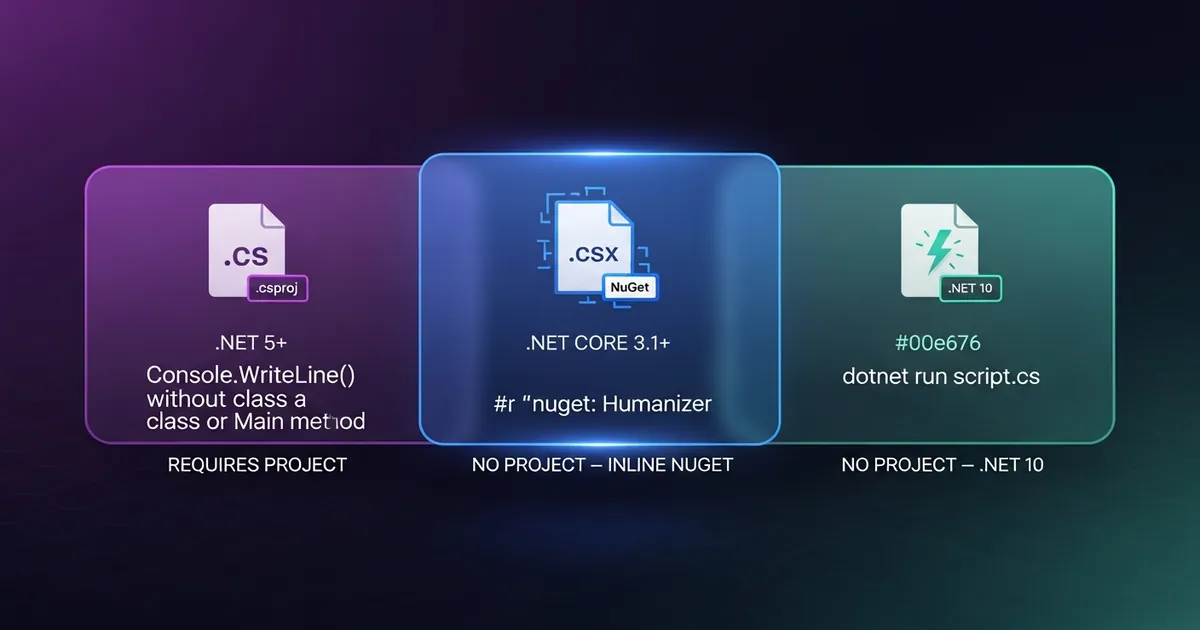
ℹ️ Info: The three approaches are complementary, not competing. The choice depends on the context: script complexity, the need for external packages and the SDK version available in the environment.
Top-Level Statements: Modern C# Without Boilerplate
Top-level statements were introduced in C# 9 (.NET 5) and let you write code directly in the Program.cs file, without declaring a namespace, class or Main. The compiler generates all of that automatically.
The visual difference is clear:
| |
| |
Both compile to the same result. The compiler infers the class and the entry method. When I need command-line arguments, the args array is implicitly available:
| |
📂 Source Code: The full example is available in the blog’s samples repository:
BlogSamples/Scripting/TopLevelStatements/
⚠️ Warning: Top-level statements still require a
.csprojfile to compile. They remove the class andMainmethod boilerplate, but they do not eliminate the project. If you want to run code with no project at all, the next two approaches are the way to go.
The main limitation is that only one file per project can use top-level statements — the others need regular declarations. In practice that is enough for most console projects.
dotnet-script: Running .csx Files
dotnet-script is a global tool that interprets .csx (C# Script) files using the Roslyn Scripting API. The fundamental difference from top-level statements is that it does not need a project — the file is the complete unit of execution.
| |
The most powerful feature is referencing NuGet packages directly in the file, without a csproj, without dotnet add package:
| |
📂 Source Code: The full example is available in the blog’s samples repository:
BlogSamples/Scripting/DotnetScript/
The use cases where dotnet-script shines:
- One-off migrations: running a specific migration in a given environment without the main project’s context
- Data seeding: populating a development database with realistic data
- CI/CD utilities: checking versions, validating configurations, generating artifacts
- Queries and reports: combining Entity Framework (via NuGet) with C# logic without creating a project
💡 Tip: On Linux and macOS, add
#!/usr/bin/env dotnet-scriptas the first line of the.csxfile to make it directly executable in the shell, without having to prefix it withdotnet script.
Running a .cs File Directly with dotnet run
.NET 10 brought a long-awaited feature: running a single .cs file with no project, no solution, no configuration at all:
| |
This is different from the traditional dotnet run, which must be executed inside a project directory. Here, the .cs file is the complete unit of execution.
A real-world example — checking the version of a service across multiple environments:
| |
| |
📂 Source Code: The full example is available in the blog’s samples repository:
BlogSamples/Scripting/DotnetRunSingleFile/
ℹ️ Info: In the initial .NET 10 release,
dotnet run file.csdoes not support multiple files or inline NuGet references. For scripts that need external packages,dotnet-scriptwith.csxis still the best option.
The biggest advantage of this approach is zero friction: there is no additional tool to install, it works on any machine with the .NET 10 SDK and it requires no auxiliary file.
Real Use Cases: When C# as a Script Makes Sense
After using the three approaches day to day, here are some scenarios where choosing C# as a script paid off:
CI/CD automations: pipeline scripts that need business logic — validating appsettings.json settings, checking that required environment variables are present, generating release artifacts with standardized names. All of it in typed C#, with the same libraries the main project uses.
Development data seeding: populating a local database with realistic data using the same DbContext and the same entities as the project. With dotnet-script and #r "nuget:Microsoft.EntityFrameworkCore.SqlServer,...", the script accesses the database without creating a dedicated project.
Team utilities: internal tools the .NET team needs to maintain over time. In statically typed C#, the next developer who opens the script will understand the code without learning a new language.
Prototyping: testing the behavior of an API or library before integrating it into the main project. A .csx file with #r "nuget:..." is faster than creating a test project.
⚠️ Warning: When the script starts to grow — multiple functions, multiple files, the need for unit tests, externalized configuration — the time to create a dedicated console project has come. Scripts are for one-off tasks, not for systems. The article on .NET Worker Background Service shows the path when the automation needs to become a long-running service.
Comparison: C# Script vs PowerShell vs Python for Automation
For .NET teams, the comparison with the most common alternatives is relevant. The table below is objective — each tool has real advantages:
| Criterion | C# Script | PowerShell | Python |
|---|---|---|---|
| Learning curve (.NET team) | Low | Medium | High |
| Access to .NET libraries / NuGet | ✅ Native | ❌ Limited | ❌ No |
| Static typing | ✅ Yes | ❌ No | ❌ No |
| Portability (Linux/macOS/Windows) | ✅ Yes | ✅ Yes (PS Core) | ✅ Yes |
| IDE support (IntelliSense, debugging) | ✅ VS Code + OmniSharp | Partial | ✅ Yes |
| Startup performance (JIT warm-up) | ⚠️ Slow | Medium | Medium |
| Operating system administration | ⚠️ Verbose | ✅ Native | Good |
| ML / data science ecosystem | ❌ No | ❌ No | ✅ Yes |
When C# script loses: pure shell tasks (moving files, managing processes, command pipelines), operating system administration, scripts under ten lines where PowerShell is more concise.
When C# script wins: business logic that uses the same types and libraries as the main project, consuming .NET APIs, database operations via Entity Framework, anything where static typing reduces errors.
Practical Example
The scenario: a script that reads a CSV file with products and sends each record to an internal REST API — a recurring need in data migration projects.
With dotnet-script, the .csx file references the CSV package directly:
| |
📂 Source Code: The full example, with error handling, cancellation via
CancellationToken, retry and structured logging, is available in the blog’s samples repository:BlogSamples/Scripting/ExemploPratico/
The full script in the repository includes the Produto record, HttpRequestException handling with manual retry, progress logging and --dry-run support via an argument.
Tips and Good Practices
Prefer
.csxwithdotnet-scriptwhen you need NuGet. Top-level statements in a minimal.csprojproject still requiredotnet add packageand change the project file. With.csx, the reference lives inside the script itself and anyone can run it withdotnet script file.csxwithout additional setup.Never hardcode secrets in scripts. Use environment variables (
Environment.GetEnvironmentVariable) ordotnet user-secretsfor local development. Automation scripts often circulate in repositories and CI logs — an exposed connection string or token is a real risk. See the article on Structured Logging to understand how to keep sensitive data out of logs as well.For scripts used in CI/CD, pin the tool version. Create a
.config/dotnet-tools.jsonin the repository withdotnet tool install --local dotnet-script. This ensures the pipeline always uses the same version, without depending on what is installed globally on the build agent.Add
#!/usr/bin/env dotnet-scriptfor Linux/macOS. With that as the first line of the.csxfile and execute permission (chmod +x script.csx), the script can be called directly as./script.csxin the terminal — with no prefix. In teams with developers on different operating systems, this reduces friction.Set a growth limit. Scripts above 150–200 lines usually indicate that the task has outgrown the scope of a script. At that point, creating a console project with a proper structure — tests, externalized configuration, dependency injection — is more sustainable than expanding the script indefinitely.
Objective Summary
- Top-level statements — remove the
class Programandstatic void Main()boilerplate since C# 9 (.NET 5), but still require a.csprojfile to compile; they are not project-less execution. - dotnet-script — an open-source global tool that runs
.csxfiles without a project, with support for inline NuGet references via#r "nuget:Package,Version", based on the Roslyn Scripting API. dotnet run file.cs— a native .NET 10 feature that runs a single.csfile without a project, without a solution and without additional configuration; it does not support inline NuGet in the initial release.- C# as a script in CI/CD — lets .NET teams write pipeline automations reusing libraries and typing from the .NET ecosystem, without learning PowerShell or Python.
- Limitation of single-file
dotnet run(.NET 10) — it supports neither multiple files nor inline NuGet; for those needs,dotnet-scriptwith.csxis the appropriate alternative. - Selection criterion — no inline NuGet and no project:
dotnet run file.cs; inline NuGet and no project:dotnet-script .csx; formal distribution and multiple files: a console project with top-level statements.
Read Also
- .NET 8+ Configuration Pipeline — managing configuration, secrets and environment variables in .NET scripts and applications
- Logs Without Context Are Noise: Structured Logging in .NET 8 — adding structured observability to your scripts and workers
- .NET Worker Background Service — when the script grows and needs to become a long-running service with a managed lifecycle
References
- What’s new in .NET 10 — Run C# files directly — Microsoft Learn — official documentation for the
dotnet run file.csfeature - dotnet-script GitHub — official repository of the open-source tool for running
.csx - Top-level statements — C# Programming Guide — Microsoft Learn — complete reference for the feature
- Roslyn Scripting API Samples — dotnet/roslyn — technical foundation of dotnet-script, Roslyn Scripting API samples
- .NET CLI reference — dotnet run — Microsoft Learn — complete reference for the
dotnet runcommand - Global tools — .NET CLI — Microsoft Learn — installing and managing global tools such as
dotnet-script - CsvHelper — GitHub — library used in the practical example to read CSV
By commenting, you agree to our Privacy Policy, Terms of Use, Data Deletion Policy.