
Introduction
The node_modules folder is, without exaggeration, one of the biggest problems in the modern JavaScript ecosystem. In 2018, Ryan Dahl — the creator of Node.js himself — took the stage at JSConf EU to give his famous talk “10 Things I Regret About Node.js”. And guess what was at the top of the list? node_modules. The way dependencies are resolved, stored and duplicated inside that folder is a leftover of 2009 design decisions that were never fixed.
If you are a JavaScript or TypeScript developer, you have surely run npm install on a seemingly simple Angular project and watched in disbelief as hundreds of megabytes of transitive dependencies were dumped onto your disk. The meme “node_modules is the heaviest object in the universe” exists for a very real reason. But the problem goes beyond size: permissive security, phantom dependencies, supply chain attacks and a module resolution that defies logic are just some of the symptoms.
The good news is that two modern runtimes emerged to solve these problems — each with its own philosophy. Deno, created by Ryan Dahl himself as a fix for Node.js’s mistakes, simply eliminated node_modules. Bun, created by Jarred Sumner and written in Zig, kept node_modules but optimized it radically with hardlinks and a binary lockfile.
In this article, you will understand in depth what is wrong with node_modules, learn the stories and motivations behind Deno and Bun, see a detailed comparison of the three runtimes, and — most importantly — try it out in practice with two real Angular projects: one running on Bun and the other on Deno, without node_modules. If you have read my article pip Is Slow, Poetry Is Complex: UV Arrived to Fix Python, you will notice that the JavaScript world is going through an analogous revolution.
Let’s start by understanding how we got here.
The Node.js Legacy — And Its Problems
To understand why node_modules is a problem, we need to go back to 2009. That year, Ryan Dahl introduced Node.js to the world. The idea was revolutionary: use Chrome’s V8 engine to run JavaScript outside the browser, with a non-blocking I/O model based on an event loop. Suddenly, frontend developers could write server code in the same language. Fullstack JavaScript was born.
npm (Node Package Manager) came along and quickly became the largest package registry in the world. Any developer could publish and consume libraries with a simple npm install. The ecosystem exploded. Frameworks such as Express, Koa, Hapi and later NestJS turned Node.js into the default choice for APIs and microservices. The callback model, although criticized for the infamous callback hell, evolved into Promises and then into async/await — making asynchronous code much more readable. If you program in C#, you will recognize this pattern: JavaScript’s async/await was directly inspired by what Microsoft implemented in C# 5.0, as discussed in the article on asynchronous programming.
But while the language and the runtime evolved, one fundamental piece stayed untouched for more than a decade: node_modules. The way Node.js resolves dependencies was defined in its early days and never got a design review. The result is a series of structural problems that affect projects of every size — from hello world to enterprise applications.
Node.js paved the way for an entire generation of developers. But the 2009 design decisions took their toll. And that is exactly what I will show next.
The Black Hole Called node_modules
If there is a universal symbol of the JavaScript ecosystem’s problems, that symbol is the node_modules folder. Let’s dissect why it deserves the nickname “black hole”.
Absurd size
A simple Angular project — like my search-ui/ in the blog-zocateli-sample repository — contains only 4 source files: models.ts, cliente.service.ts, clientes-grid.component.ts and clientes-grid.component.html. Together, those files add up to less than 5 KB of real code. But after running npm install, the generated node_modules folder takes up between 200 and 500 MB. That’s right: the ratio between useful code and dependencies can reach 1:100,000.
Transitive dependencies
When you install 10 packages in your package.json, you are actually pulling in 800 or more transitive dependencies. Each package brings its own dependencies, which bring others, in a cascade effect that quickly gets out of control. You trust your 10 packages — but do you trust the other 790 that came as a bonus?
Complex module resolution
The Node.js module resolution algorithm is a cascading search through parent folders. When you call require('lodash'), Node.js looks in ./node_modules/lodash, then in ../node_modules/lodash, then in ../../node_modules/lodash, and so on, up to the root of the file system. This mechanism is slow, hard to debug and a source of subtle bugs.
Package duplication
The same library can exist in multiple versions inside the node_modules tree. One package may depend on [email protected] while another depends on [email protected] — and both versions are installed separately, taking up twice the space.
Phantom dependencies
This is an insidious problem. Packages that are not listed in your package.json can be accessible to your code simply because they were installed as a transitive dependency of another package. Your code works locally but mysteriously breaks in another environment where the dependency tree is slightly different.
Supply chain attacks
The ease of publishing and consuming packages on npm has a dark side. Supply chain attacks have become recurrent: the event-stream case (2018) injected malicious cryptocurrency-stealing code into a popular library; ua-parser-js (2021) was compromised to include crypto miners; and the colors.js/faker.js episode (2022) showed that a single frustrated maintainer can sabotage thousands of projects. node_modules, having no security sandbox model at all, runs any code inside it with the same permissions as the Node.js process.
Performance and incompatibilities
npm install is notoriously slow. Lock files such as package-lock.json cause frequent conflicts in large teams. Symlinks behave differently between Windows and Unix. Long paths on Windows (over 260 characters) can break entire projects.
💡 Scale comparison: The
search-ui/project has ~5 KB of real code and ~350 MB ofnode_modules. It is like carrying a 70 kg backpack to hold a pen.
node_modules is not just inconvenient — it is a fundamental design problem. And two runtimes decided to tackle it in radically different ways.
Deno: Ryan Dahl’s Regret That Became a Product
In May 2018, Ryan Dahl took the stage at JSConf EU with a presentation that shook the JavaScript ecosystem. In the talk “10 Things I Regret About Node.js”, the creator of Node.js publicly admitted that he had made serious design mistakes — and that node_modules was the worst of them. But Dahl did not stop at pointing out problems: he introduced Deno, a new runtime built from scratch to fix those mistakes.
What Deno is
Deno is a runtime for JavaScript and TypeScript, written in Rust, that runs code on the V8 engine (the same one used by Chrome and Node.js). But the similarities with Node.js end there. Deno was designed with a completely different philosophy.
What Deno solves
Native TypeScript. In Node.js, you need to configure tsconfig.json, install the TypeScript compiler and usually set up a separate build step. In Deno, TypeScript simply works — no configuration, no extra dependency.
No node_modules. This is the central point. Deno resolves dependencies in three alternative ways: imports via URL, import maps in deno.json, or a global cache. In none of these cases is a node_modules folder created in the project. Dependencies live in a shared global cache (~/.cache/deno/ on Linux/macOS, %LOCALAPPDATA%/deno on Windows), which means multiple projects reuse the same dependencies without duplication.
Sandbox security. Unlike Node.js, which gives unrestricted access to the file system, network and environment variables, Deno runs in a sandbox by default. To read a file, you need the --allow-read flag. To make an HTTP request, --allow-net. To access environment variables, --allow-env. This drastically mitigates the risk of supply chain attacks — even if a malicious package is imported, it cannot access anything without explicit permission.
Built-in toolchain. Deno includes a formatter (deno fmt), a linter (deno lint), a test runner (deno test), a benchmark runner (deno bench) and even a documentation generator. In Node.js, each of these tools is a separate devDependency — Prettier, ESLint, Jest, each with its own configuration files and hundreds of dependencies.
Web Standard APIs. Deno implements standard web APIs such as fetch, Web Crypto and Streams. Code that works in the browser works in Deno with minimal changes — something that was never true in Node.js.
Node.js compatibility in Deno 2.x
When Deno 1.x was released, the approach was purist: no npm, no node_modules, no compatibility. That severely limited adoption, since the npm ecosystem has millions of packages developers need to use every day.
Deno 2.x brought a pragmatic change: it is now possible to import npm packages directly using the npm: prefix. This means frameworks such as Angular and React and libraries such as RxJS can be used in Deno without rewriting anything — while keeping the advantage of having no node_modules in the project.
⚠️ Note: Deno 2.x added npm compatibility out of pragmatism — purism gave way to the reality of the ecosystem. But the design philosophy remains: dependencies live in the global cache, not in the project folder.
Deno pros and cons
Pros: zero-config TypeScript, granular sandbox security, Web Standards, a complete built-in toolchain, no node_modules, Deno Deploy for edge deployment.
Cons: a smaller ecosystem than Node.js (although growing fast), approach changes between Deno 1.x and 2.x that caused confusion in the community, corporate adoption still growing, and some frameworks without complete official support.
Bun: Absurd Speed Written in Zig
If Deno was born out of a philosophical regret, Bun was born out of frustration with performance. Created by Jarred Sumner, a former Stripe engineer, in 2022, Bun 1.0 was officially released in September 2023 with a bold proposal: to be the fastest JavaScript runtime on the planet — and, on top of that, replace npm, webpack and Jest with a single binary.
What Bun is
Bun is a JavaScript runtime written in Zig (a low-level systems language) that uses Safari’s JavaScriptCore engine instead of the V8 used by Node.js and Deno. Besides being a runtime, Bun is simultaneously a package manager, bundler and test runner — all in a single executable.
What Bun solves
Brutal speed. Bun is designed for extreme performance. bun install is up to 25x faster than npm install in real benchmarks. The runtime starts up significantly faster than Node.js, which makes a difference especially for CLIs and scripts. The JavaScriptCore engine, although less documented than V8, is optimized for fast startup.
Drop-in replacement. Unlike Deno, which required a redesign of projects, Bun works as a direct substitute for Node.js. In most cases, you can simply swap node for bun and npm for bun in your scripts — and everything keeps working. Compatibility with the npm ecosystem is very high.
Native TypeScript and JSX. Like Deno, Bun understands TypeScript and JSX without additional configuration. No manual transpilation, no extra build step.
Optimized native APIs. Bun offers proprietary high-performance APIs: Bun.serve() for HTTP servers, Bun.file() for efficient file reading, and even a built-in SQLite driver. These APIs are significantly faster than their Node.js equivalents.
node_modules in Bun
Here is the fundamental difference between Bun and Deno: Bun still uses node_modules. This is a conscious design decision — keeping maximum compatibility with the existing ecosystem. But Bun optimizes node_modules in important ways:
- Hardlinks instead of copies. On file systems that support hardlinks (ext4, APFS, NTFS), Bun creates hardlinks to the package files instead of copying them. This means that if two projects use the same React version, the physical file on disk is shared between them — significantly reducing disk space.
- Binary lockfile.
bun.lockbis a binary file, not JSON likepackage-lock.json. That makes it much faster to generate and read, although it is not human-readable. - Optimized resolution. Bun’s dependency resolution algorithm is implemented in Zig and is significantly faster than npm’s.
Bun pros and cons
Pros: absurd speed (install, startup, runtime), a drop-in replacement for Node.js, high-performance native APIs, native TypeScript/JSX, fast startup ideal for CLIs.
Cons: still uses node_modules (even if optimized), the JavaScriptCore engine is less documented and behaves differently from V8, Windows support is still maturing, and the community is smaller than those of Node.js and Deno.
💡 Practical tip: Bun is the path of least resistance — swap npm for bun in your existing project and get an immediate speed boost, without rewriting anything.
Comparison: Node.js vs Deno vs Bun
Now that you know the motivations and architectures of each runtime, I will put them side by side in a detailed comparison.
| Aspect | Node.js | Deno | Bun |
|---|---|---|---|
| Creator | Ryan Dahl (2009) | Ryan Dahl (2018) | Jarred Sumner (2022) |
| Engine | V8 (Chrome) | V8 | JavaScriptCore (Safari) |
| Written in | C++ | Rust | Zig |
| TypeScript | Needs config | Native | Native |
| node_modules | Required | No (global cache) | Yes (optimized/hardlinks) |
| Security | Permissive | Sandbox by default | Permissive |
| Install speed | Baseline | Fast | Very fast (~25x npm) |
| Built-in toolchain | No | Yes (fmt, lint, test) | Yes (bundler, test) |
| Node.js compat | N/A | High (Deno 2.x, npm: prefix) | Very high (drop-in) |
Comparison analysis
Engine and base language. Node.js and Deno share V8, which means identical behavior when running JavaScript. Bun, by using JavaScriptCore, may have subtle differences in edge cases — but in 99% of scenarios, the behavior is compatible.
Node_modules. This is the most impactful difference day to day. Node.js creates hundreds of MB in every project. Bun creates the same structure, but with hardlinks that reduce actual disk usage. Deno creates nothing — everything lives in the global cache.
Security. Only Deno implements a sandbox security model. Node.js and Bun trust that all imported code is well-intentioned — a real risk given the history of supply chain attacks on npm.
Toolchain. Node.js requires ESLint, Prettier, Jest and webpack/Vite as separate dependencies. Deno and Bun include a large part of these tools in the runtime itself.
When to use each one
- Node.js: legacy projects, enterprise environments with a consolidated ecosystem, when the team already masters the tooling. There is no reason to migrate stable projects in production without careful analysis.
- Deno: new TypeScript projects that prioritize security (APIs, sensitive CLIs), when you want to avoid
node_modulesand its complexities, or when you need a minimal toolchain. - Bun: when speed is the priority, in existing Node.js projects that want an immediate gain by swapping only the package manager, or for CLIs and scripts that need fast startup.
Practical Example: Angular With Bun
Enough theory — let’s see it in practice. In the blog-zocateli-sample repository, I created the frontend/search-ui-bun/ project as a version of my customer grid running on Bun.
The package.json with Bun scripts
The package.json is practically identical to that of a Node.js project, with scripts adapted to use bunx:
| |
Note that the scripts use bunx instead of npx. bunx is Bun’s equivalent of npx — it runs package binaries without needing a global install.
Bun configuration (bunfig.toml)
The bunfig.toml file configures Bun’s behavior:
| |
Running the project
| |
bun install resolves all the Angular dependencies in seconds — where npm install would take minutes. The generated lockfile is bun.lockb, a compact binary file.
The standalone Angular component
ClientesGridComponent was converted into a standalone component (the Angular 19+ default), importing CommonModule and ReactiveFormsModule directly in the decorator:
| |
The app configuration uses provideRouter and provideHttpClient, the modern Angular pattern:
| |
The Angular code is identical — it does not matter whether it runs on Node.js or Bun. The difference lies entirely in the runtime and the package manager.
ℹ️ About node_modules: Bun generates the
node_modulesfolder, but with hardlinks. In practice, the folder takes up less space and installation is almost instantaneous.
Practical Example: Angular With Deno
Now let’s move to the most revealing project: frontend/search-ui-deno/, which runs Angular without node_modules.
deno.json: import maps and tasks
Instead of package.json, Deno uses deno.json to map dependencies via import maps and define tasks:
| |
The key is the "nodeModulesDir": "none" setting. It tells Deno not to create the node_modules folder — all dependencies are resolved into Deno’s global cache. The import maps in the "imports" field map the Angular packages to their npm versions using the npm: prefix, a Deno 2.x feature.
Running the project
| |
After running deno install, look at the project directory. There is no node_modules folder. There is no package-lock.json. Only the source and configuration files. The dependencies were downloaded to the global cache in ~/.cache/deno/ and are shared with every other Deno project on the machine.
The Angular code stays the same
app.config.ts, ClienteService, ClientesGridComponent — they are all identical to the Bun project and to the original Node.js one. Angular does not need to know which runtime is running it. The imports follow the same paths:
| |
Deno resolves @angular/core by looking up the import map in deno.json, which points to npm:@angular/core@^19.2.0, which is fetched from the global cache. No local folder is created.
💡 The key point: With Deno, the entire project takes up only your code files — no 300 MB of parasites. The global cache is shared, so the second time you use Angular in another project, resolution is instantaneous.
Folder Structure: The Visual Difference
Nothing illustrates the difference between the three runtimes better than a visual comparison of each project’s folder structure.
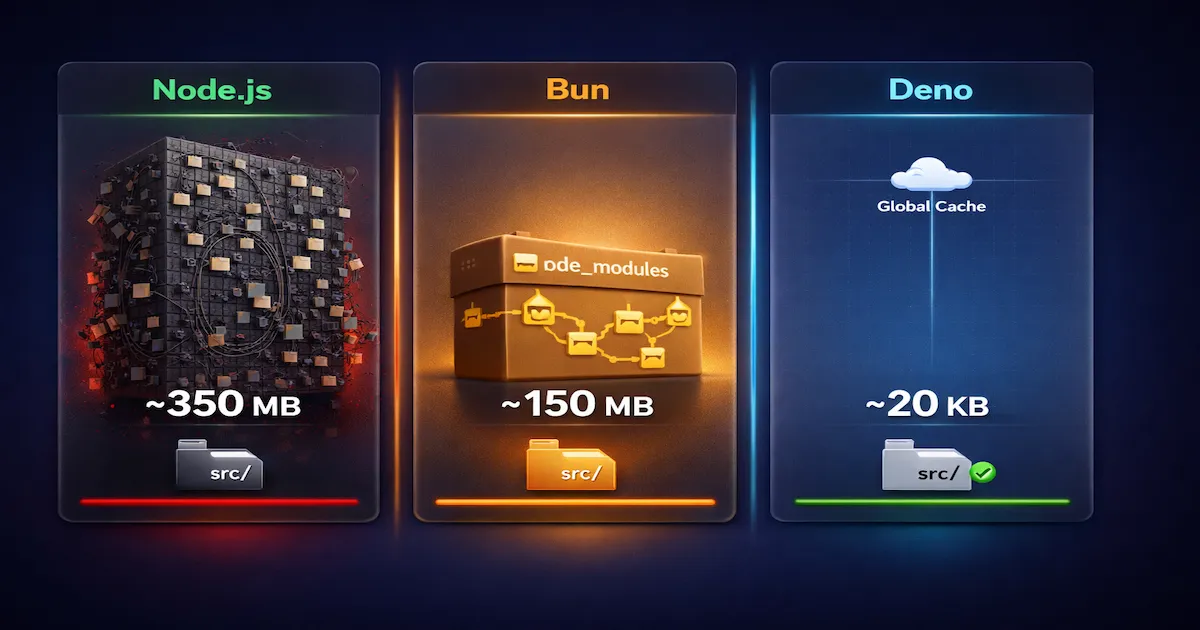
search-ui/ (original Node.js)
| |
search-ui-bun/ (Bun)
| |
search-ui-deno/ (Deno — WITHOUT node_modules)
| |
Disk size comparison
| Project | Source code | Dependencies | Total on disk |
|---|---|---|---|
| search-ui (Node.js) | ~5 KB | ~350 MB (node_modules) | ~350 MB |
| search-ui-bun (Bun) | ~20 KB | ~150 MB (hardlinks) | ~150 MB* |
| search-ui-deno (Deno) | ~20 KB | 0 (global cache) | ~20 KB** |
* Bun’s actual size on disk depends on how many projects share hardlinks. If it is the only project, the size is similar to npm’s; if there are multiple projects, the space is reused.
** Deno’s dependencies exist in the global cache (~/.cache/deno/), shared among all projects. The total size does not disappear — but it is not duplicated per project.
The difference is visual and brutal. The Deno project is clean — code only. The Bun project has node_modules, but optimized. The Node.js project carries the weight of a decade of unreviewed design decisions.
Tips and Good Practices
Based on what I have shown, here are six practical recommendations for bringing Deno and Bun into your development workflow.
1. Start by trying Bun as a package manager
The safest way to experiment is to use Bun only as a replacement for npm in existing Node.js projects. Swap npm install for bun install and npx for bunx. The risk is zero — if something goes wrong, go back to npm. But the chance of something going wrong is minimal, and the speed gain is immediate.
2. Use Deno for new TypeScript projects that need security
If you are starting an API, CLI or service that handles sensitive data, Deno’s sandbox model is a real differentiator. The need for explicit flags to access the network, file system and environment variables adds a layer of protection that does not exist in Node.js or Bun.
3. Do not abandon Node.js in production without extensive testing
Migrating a stable production project to Deno or Bun should be a well-founded technical decision, not an emotional one. Test extensively, check the compatibility of every dependency, and have a rollback plan.
4. Take advantage of the built-in toolchain to reduce devDependencies
With Deno, you can remove ESLint (deno lint), Prettier (deno fmt), Jest (deno test) and even benchmarking (deno bench) from your devDependencies. Fewer packages = smaller attack surface = a lighter (or nonexistent) node_modules.
5. Check official support before migrating frameworks
Not every JavaScript framework officially supports Deno or Bun. Before migrating, check the official documentation. Angular, for example, works with both through the CLI, but official support may vary in edge cases. The NestJS ecosystem has good Bun support, but Deno support is still evolving.
6. Hybrid strategy: bun install + node for execution
A pragmatic approach is to use bun install for its speed (generating node_modules with hardlinks) and keep node as the execution runtime. That gives you the best of both worlds: fast installation and maximum compatibility. It is a smooth transition before adopting Bun as a full runtime.
Conclusion
node_modules is more than a heavy folder — it is the most visible symptom of design decisions made in 2009 that were never reviewed. Node.js revolutionized web development by bringing JavaScript to the server, but it left a structural legacy that costs the whole community time, disk space and security.
Deno, created by Ryan Dahl himself as a fix for his regrets, eliminated node_modules completely. Dependencies go to a global cache, TypeScript works natively, and a sandbox model protects against malicious code. Bun, created by Jarred Sumner with an obsessive focus on performance, kept node_modules out of pragmatism but optimized it with hardlinks and a binary lockfile, delivering installation speeds up to 25x faster than npm.
The competition between Node.js, Deno and Bun is healthy and benefits every JavaScript developer. Node.js remains the most mature and stable runtime for production. Deno offers the most modern vision of how a runtime should work. Bun delivers immediate performance gains with minimal adoption friction.
If you use Angular, React, Vue or any JavaScript framework, try the practical projects we created: search-ui-bun/ shows how to run Angular with Bun in seconds, and search-ui-deno/ demonstrates an Angular project working entirely without node_modules. Clone the blog-zocateli-sample repository, run the commands, and see with your own eyes the difference a modern runtime makes. The future of node_modules may not be its complete extinction — but it will certainly no longer be a black hole.
Read Also
- pip Is Slow, Poetry Is Complex: UV Arrived to Fix Python — an analogous topic: a modern versus legacy package manager, written in Rust, that transformed the Python ecosystem
- BFF: The Pattern Your Frontend Needs — the
bff-spaAngular project from the same repository, covering security in SPAs - Makefile: Automating tasks for Python, Hugo and Docker — automating the development toolchain with a Makefile
By commenting, you agree to our Privacy Policy, Terms of Use, Data Deletion Policy.