
Introduction
If you are a developer and have not yet explored the full potential of GitHub Copilot, you are missing out on one of the most transformative tools available today. Far beyond code autocompletion, Copilot has evolved into a complete ecosystem of AI agents and language models integrated directly into VS Code — each one optimized for specific tasks in your daily work.
In this article, I explore in detail:
- What the GitHub Copilot agents are and what each one does
- Which AI models are available (GPT-4o, Claude Sonnet, Gemini, o1 and more)
- When to use each model depending on the task
- How to subscribe to GitHub Copilot (plans and pricing)
- How to track usage and understand premium request billing
If you already use tools like Makefile to automate tasks or understand the importance of good security practices in web applications, you will see that Copilot is another essential piece in the modern developer’s toolkit.
What Are GitHub Copilot Agents?
GitHub Copilot agents are specialized AI assistants that operate inside VS Code. Unlike basic Copilot, which only suggests inline code, agents are invoked in Copilot Chat (side panel or chat window) and have specific capabilities — from editing multiple files to running commands in the terminal.
Think of agents as specialists that you call with the @ prefix in the chat. Each one has access to different contexts and can perform different actions.
Complete List of Agents
| Agent | How to invoke | What it does |
|---|---|---|
| Copilot Chat (default) | Just type in the chat | Answers general questions about code, documents, explains snippets and suggests solutions. It is the default “conversationalist”. |
| @workspace | @workspace + question | Analyzes the entire open project (files, structure, dependencies) to answer context-aware questions. Ideal for “where is X implemented?” or “how does module Y work?” |
| @vscode | @vscode + question | Specialist in VS Code itself: settings, shortcuts, extensions and editor customization. Ask “how do I change the theme?” or “how do I configure the debugger for Python?” |
| @terminal | @terminal + question | Analyzes the integrated terminal output and suggests commands or fixes for errors. If a build failed, it reads the output and suggests the fix. |
| @github | @github + question | Connects to the GitHub API to fetch information about issues, pull requests, repositories and actions. It can search code in other public repos and search the GitHub knowledge base. |
Specialized Agents (Agent Mode / Copilot Edits)
Besides the agents invoked with @, GitHub Copilot offers advanced operating modes:
| Mode | How to access | What it does |
|---|---|---|
| Copilot Edits (Agent Mode) | Enable it in Copilot Chat by selecting “Agent” in the mode picker | The most powerful. It can edit multiple files at once, run terminal commands, create files, install dependencies and iterate until the problem is solved. It works like an autonomous developer. |
| Copilot Edits (Edit Mode) | Select “Edit” in the mode picker | Edits files you add to the context, but does not run terminal commands. Useful for controlled refactorings where you want to review each change. |
| Ask Mode | Select “Ask” in the mode picker | Read-only mode — answers questions without modifying any file. Ideal for quick questions. |
| Copilot Vision | Paste an image in the chat | Analyzes screenshots, diagrams and mockups and generates code from them. Useful for turning a design into HTML/CSS or understanding an architecture diagram. |
Extensions that Add Extra Agents
In this project’s environment, besides github.copilot-chat, there are extensions installed that expand the agent ecosystem:
| Extension | Agent/Feature | Use |
|---|---|---|
GitHub Copilot Chat (github.copilot-chat) | All default agents (@workspace, @vscode, @terminal, @github) + Agent Mode | The core extension that enables the entire chat and agent experience. |
Azure GitHub Copilot (ms-azuretools.vscode-azure-github-copilot) | @azure | Azure specialist: creates resources, generates ARM/Bicep templates, suggests cloud architectures and helps with deployment. Answers questions like “how do I create an App Service?” or “generate a Bicep for Azure Functions”. |
AI Toolkit (ms-windows-ai-studio.windows-ai-studio) | Agent mode specialized in AI | Helps create, test and deploy AI agents and workflows with the Microsoft Agent Framework. Includes tracing, evaluation and Foundry integration. |
Azure AI Foundry (teamsdevapp.vscode-ai-foundry) | Microsoft Foundry integration | Connects to Microsoft Foundry (formerly Azure AI Foundry) to manage models, endpoints and AI projects directly from VS Code. |
💡 Tip: To install extensions that add agents, just search for “copilot” or “agent” in the VS Code marketplace (Ctrl+Shift+X). Extensions such as Azure GitHub Copilot automatically appear as chat participants with
@azure.
AI Models Supported by GitHub Copilot
One of GitHub Copilot’s biggest advantages is model flexibility. You are not locked into a single AI model — you can choose the best one for each task directly in the Copilot Chat model picker.
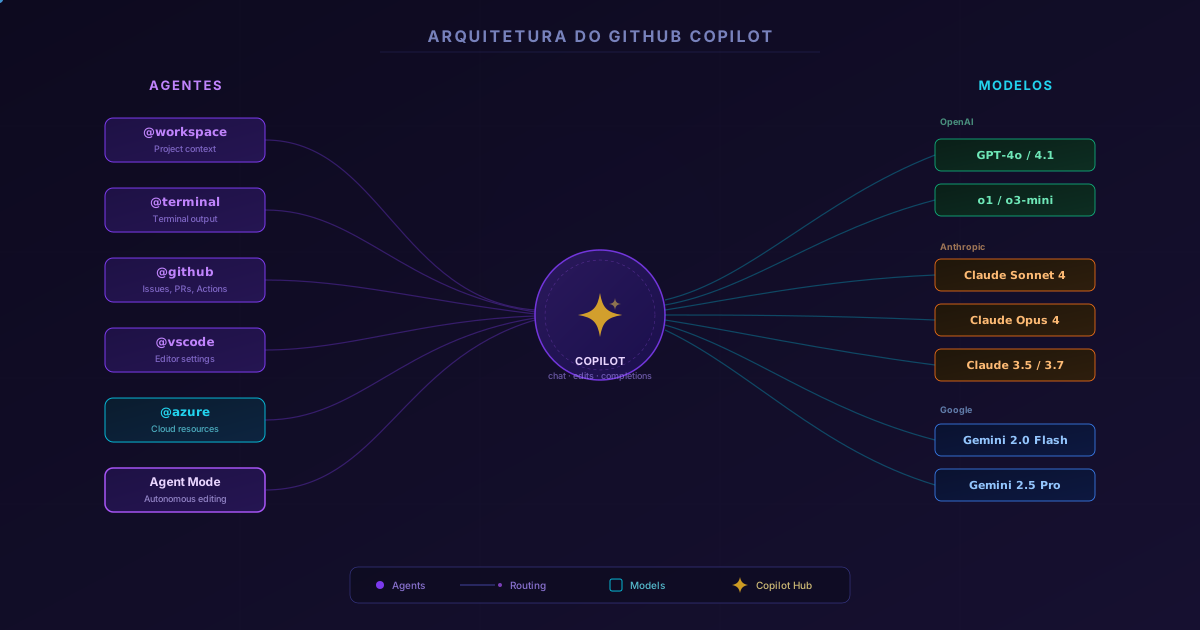
Complete Model Table
| Model | Provider | Speed | Quality | Context window | Best for |
|---|---|---|---|---|---|
| GPT-4o | OpenAI | ⚡ Fast | ⭐⭐⭐⭐ | 128K tokens | General use, good cost × quality ratio. Default model. |
| GPT-4o mini | OpenAI | ⚡⚡ Very fast | ⭐⭐⭐ | 128K tokens | Simple, quick tasks: autocompletion, boilerplate, snippets. Cheaper. |
| GPT-4.1 | OpenAI | ⚡ Fast | ⭐⭐⭐⭐⭐ | 1M tokens | Advanced coding with a massive context window. Large projects, multiple files. |
| GPT-4.1 mini | OpenAI | ⚡⚡ Very fast | ⭐⭐⭐⭐ | 1M tokens | Balance between speed and quality for code review and refactorings. |
| GPT-4.1 nano | OpenAI | ⚡⚡⚡ Ultra fast | ⭐⭐⭐ | 1M tokens | Trivial tasks at very high speed. Autocompletion and inline suggestions. |
| o1 | OpenAI | 🐢 Slow | ⭐⭐⭐⭐⭐ | 200K tokens | Complex reasoning: algorithms, math, logic, hard debugging. Thinks before answering. |
| o1 mini | OpenAI | 🐢 Moderate | ⭐⭐⭐⭐ | 128K tokens | Moderate reasoning with better speed than full o1. |
| o3 mini | OpenAI | 🐢 Moderate | ⭐⭐⭐⭐⭐ | 200K tokens | Advanced reasoning with better cost-benefit than o1. Ideal for architecture planning. |
| Claude 3.5 Sonnet | Anthropic | ⚡ Fast | ⭐⭐⭐⭐⭐ | 200K tokens | Excellent for code, refactoring, detailed explanations and technical documentation. |
| Claude 3.7 Sonnet | Anthropic | ⚡ Fast | ⭐⭐⭐⭐⭐ | 200K tokens | Improved version with “thinking mode” — extended reasoning for complex problems. |
| Claude Sonnet 4 | Anthropic | ⚡ Fast | ⭐⭐⭐⭐⭐ | 200K tokens | Latest model in the Sonnet family. Excellent at coding, multi-file editing and following complex instructions. |
| Claude Opus 4 | Anthropic | 🐢 Moderate | ⭐⭐⭐⭐⭐+ | 200K tokens | Anthropic’s most capable model. Ideal for long, autonomous and complex tasks such as Agent Mode. |
| Gemini 2.0 Flash | ⚡⚡ Very fast | ⭐⭐⭐⭐ | 1M tokens | Huge context window at high speed. Ideal for analyzing entire repositories. | |
| Gemini 2.5 Pro | ⚡ Fast | ⭐⭐⭐⭐⭐ | 1M tokens | Google’s premium model with advanced reasoning and a 1M-token window. |
⚠️ Note: Model availability may vary with your plan and GitHub updates. Some models (such as o1 and Claude Opus 4) consume more premium requests per request.
When to Use Each Model?
Choosing the right model can make a huge difference in the quality and speed of the result. Here is a practical guide:
For everyday work (general use)
→ GPT-4o or Claude Sonnet 4
They are the best “all-rounder” models. They respond quickly, understand code very well and work for most tasks: writing functions, explaining code, generating tests, documenting.
For simple, quick tasks
→ GPT-4o mini or GPT-4.1 nano
When you need something trivial — autocompletion, generating boilerplate, converting types, formatting data. They are the fastest and consume fewer premium requests.
For complex reasoning and hard debugging
→ o3 mini or Claude 3.7 Sonnet (extended thinking)
When the problem requires “thinking” — complex algorithms, debugging race conditions, performance optimization, architecture design. These models have a reasoning mode that breaks the problem down step by step.
For large projects with many files
→ Gemini 2.5 Pro or GPT-4.1
With a context window of up to 1 million tokens, these models can “see” entire repositories. Ideal for large-scale refactorings, framework migrations or dependency analysis.
For autonomous tasks in Agent Mode
→ Claude Opus 4 or Claude Sonnet 4
When you want Copilot to work autonomously — creating files, running tests, fixing errors iteratively. Claude models stand out at following long instructions and staying coherent in multi-step tasks.
For documentation and explanations
→ Claude 3.5 Sonnet or Claude Sonnet 4
Claude models are known for the quality of their writing — clear, well-structured and with didactic explanations. Excellent for generating READMEs, docstrings and code comments.
How GitHub Copilot Is Billed: Premium Requests
Since the introduction of the premium requests system, GitHub Copilot has changed how advanced models are billed. Understanding how it works is essential to avoid surprises on the bill.
The billing model
GitHub Copilot uses a system of monthly premium request quotas. Each interaction with Copilot consumes requests, and more advanced models consume more requests per use.
| Concept | Explanation |
|---|---|
| Base request | An interaction with the default model (GPT-4o) counts as 1 request |
| Premium request | Advanced models count as multiple requests. For example, o1 may count as ~10 requests, Claude Opus 4 as ~20 |
| Multiplier | Each model has a “multiplier” that defines how many premium requests it consumes. More expensive/powerful models have a higher multiplier |
| Monthly quota | Each plan includes a number of premium requests per month. Went over? You can buy more or wait for the monthly reset |
Multipliers per Model (reference)
| Model | Approximate multiplier | Note |
|---|---|---|
| GPT-4o | 1× | Base model — reference |
| GPT-4o mini | 0.33× | Cheaper than the base |
| GPT-4.1 | 1× | Same cost as GPT-4o |
| GPT-4.1 mini | 0.33× | Economical |
| GPT-4.1 nano | 0.33× | Ultra economical |
| o1 | 10× | High consumption (reasoning) |
| o3 mini | 3× | Reasoning at moderate cost |
| Claude 3.5 Sonnet | 1× | Same cost as GPT-4o |
| Claude 3.7 Sonnet | 1× | Same cost as 3.5 |
| Claude Sonnet 4 | 1× | Standard cost |
| Claude Opus 4 | 20× | The most expensive — use with care |
| Gemini 2.0 Flash | 0.33× | Very economical |
| Gemini 2.5 Pro | 1× | Standard cost |
⚠️ Warning: The multipliers above are approximations based on the official documentation from February 2026. GitHub may update these values. Always check the official billing page for up-to-date values.
Plans and How to Subscribe to GitHub Copilot
GitHub Copilot offers different plans to serve everyone from individual developers to large corporations.
Plan Comparison
| Feature | Copilot Free | Copilot Pro | Copilot Pro+ | Copilot Business | Copilot Enterprise |
|---|---|---|---|---|---|
| Price/month | Free | US$ 10 | US$ 39 | US$ 19/user | US$ 39/user |
| Editor completions | ✅ (2,000/month) | ✅ Unlimited | ✅ Unlimited | ✅ Unlimited | ✅ Unlimited |
| Editor chat | ✅ (50/month) | ✅ Unlimited | ✅ Unlimited | ✅ Unlimited | ✅ Unlimited |
| Premium requests/month | Limited | ~300 | ~1,500 | ~300/user | ~1,000/user |
| Agent Mode | ❌ | ✅ | ✅ | ✅ | ✅ |
| Model choice | Limited | ✅ | ✅ All | ✅ | ✅ All |
| Copilot in GitHub.com | ✅ | ✅ | ✅ | ✅ | ✅ |
| Copilot Extensions | ❌ | ✅ | ✅ | ✅ | ✅ |
| Knowledge bases | ❌ | ❌ | ❌ | ❌ | ✅ |
| Fine-tuning | ❌ | ❌ | ❌ | ❌ | ✅ |
| Policies and auditing | ❌ | ❌ | ❌ | ✅ | ✅ |
How to Subscribe
For individual developers (Pro / Pro+)
- Go to github.com/settings/copilot
- Choose the desired plan (Pro or Pro+)
- Enter your payment details (credit card or PayPal)
- Billing is monthly — you can cancel at any time
- Install the GitHub Copilot Chat extension in VS Code (ID:
github.copilot-chat)
💡 Tip: GitHub offers a 30-day free trial of Copilot Pro. Take advantage of it to experiment before committing.
For companies (Business / Enterprise)
- The organization administrator opens Settings → Copilot in the GitHub organization
- Choose the plan and assign licenses to team members
- Configure usage policies (which models to allow, whether public code may be used as a reference, etc.)
- Billing is per user/month (minimum of 1 user)
How to Track Usage and Request Consumption
Monitoring your consumption is essential so you do not run out of premium requests before the end of the month.
For individual users
- Go to github.com/settings/copilot
- In the “Usage this month” section you will see:
- How many premium requests you have already used
- How many remain in the month’s quota
- The reset date (next billing cycle)
- You can also see consumption per model — which models consumed the most requests
For organizations (administrators)
- Open the organization on GitHub → Settings → Copilot → Usage
- View consumption per team member and per period
- Set usage alerts to avoid surprises
- On the Enterprise plan, export usage reports via the API
Inside VS Code
In VS Code itself, you can monitor things quickly:
- Click the Copilot icon in the status bar (bottom corner)
- Select “Copilot Status” — it shows whether it is active and which model is in use
- Open Settings → GitHub Copilot to see usage settings
💡 Practical tip: Use the
miniandnanomodels for simple everyday tasks and save the premium models (o1, Claude Opus 4) for when you really need advanced reasoning. This can triple how long your monthly quota lasts.
What Happens When the Quota Runs Out?
When you reach the premium request limit:
- Copilot does not stop working — it falls back to the base model (GPT-4o mini) for completions and chat
- Premium models become unavailable until the monthly reset
- You can buy additional requests (add-on) without changing plans
- Agent Mode keeps working, but limited to the base model
| Situation | What happens |
|---|---|
| Quota OK | All models available, normal use |
| Quota exhausted | Falls back to the base model, no access to premium models |
| Bought an add-on | Quota immediately restored for premium models |
| Monthly reset | Full quota restored automatically |
Practical Example: Choosing the Right Model in VS Code
To illustrate how to use agents and models in practice, here is how to switch the Copilot Chat model directly in VS Code:
| |
To switch between operating modes:
| |
📝 Example: If you need to refactor 5 files and run tests, select Agent Mode with Claude Sonnet 4. Copilot will edit each file, run the tests in the terminal and fix errors automatically until they pass.
Tips and Good Practices for Using GitHub Copilot
After using GitHub Copilot extensively in this project (and in several others), here are some practical tips:
1. Use the @workspace agent before asking about the project
Instead of copying and pasting code snippets into the chat, use @workspace how does the deploy system work? — it analyzes all files and answers with full context.
2. Choose the right model for the task
| |
3. Agent Mode for multi-file tasks
When you need to create an entire module, refactor files or set something up from scratch, use Agent Mode. It can create files, run commands and iterate until it works.
4. Combine agents
You can use several agents in the same conversation:
@workspace where is the Dockerfile?- Then:
@terminal what went wrong in the last build? - Then: ask Agent Mode to fix the problem
5. Give the model context
Open the relevant files before asking. The more context Copilot has, the better the answer. You can also add files to the context manually with #file:file-name.
6. Use the .github/copilot-instructions.md file
Create a custom instructions file at the root of the project so Copilot understands your team’s conventions — language, frameworks, naming patterns, etc.
7. Save premium requests
Always start with economical models (mini/nano) and escalate to premium models only when the answer is not good enough. This simple strategy can triple how long your monthly quota lasts.
Extensions Installed in This Project
For reference, here are the AI and Copilot-related extensions installed in this development environment:
| Extension | Version | Function |
|---|---|---|
github.copilot-chat | 0.37.8 | Chat, agents (@workspace, @vscode, @terminal, @github), Agent Mode and Edit Mode |
ms-azuretools.vscode-azure-github-copilot | 1.0.162 | @azure agent for cloud resources and architectures |
ms-windows-ai-studio.windows-ai-studio | 0.30.1 | AI Toolkit — building and deploying agents with the Microsoft Agent Framework |
teamsdevapp.vscode-ai-foundry | 0.16.0 | Microsoft Foundry integration for managing models and endpoints |
eamodio.gitlens | 17.10.1 | Complementary — Git history with insights integrated with Copilot |
Conclusion
GitHub Copilot is no longer just a smart autocomplete — it has become a complete ecosystem of AI agents, each specialized in one area, with access to state-of-the-art models from OpenAI, Anthropic and Google. The key to using it well is:
- Knowing the agents and when to invoke each one
- Choosing the right model for the task — the most powerful one is not always the most suitable
- Monitoring premium request consumption so you do not run out of quota in the middle of the month
- Taking advantage of Agent Mode for autonomous tasks that require editing multiple files
If you are still on the Free plan, consider trying Copilot Pro — the 30 free days let you feel the difference. And if you are already on Pro, evaluate whether Pro+ is worth it for your usage volume: 1,500 premium requests and unrestricted access to all models can be a game changer for your productivity.
To put GitHub Copilot into practice in your real workflow, see how to automate repetitive tasks with Makefile — a great scenario where Agent Mode shines.
Read Also
- Will AI Replace Developers? An Honest Opinion — what AI does very well, what it still does not do, and why deep knowledge is what defines a developer’s value
- Makefile: Automating tasks for Python, Hugo and Docker — how to automate everyday tasks with Makefile, an ideal scenario for Copilot’s Agent Mode
- Terminal vs Pipeline: differences when running scripts — understand the execution contexts that the
@terminalagent analyzes - The Pragmatic Programmer: practical lessons from the book — productivity principles that Copilot amplifies
References
- GitHub Copilot — Official documentation — central hub with guides, tutorials and API reference
- GitHub Copilot — Plans and pricing — full comparison between Free, Pro, Pro+, Business and Enterprise
- GitHub Copilot — Usage and billing — how to monitor consumption and understand billing
- GitHub Copilot — Available models — official list of supported models and multipliers
- GitHub Copilot — Chat participants (agents) — quick reference for chat agents and shortcuts
- VS Code — GitHub Copilot Overview — full Copilot integration with VS Code
- GitHub Blog — Copilot Agent Mode — official Agent Mode announcement with details on how it works
- Anthropic — Claude model family — specifications of the Claude models (Sonnet, Opus)
- OpenAI — Model overview — official documentation of the GPT-4o, o1, o3 and 4.1 family models
- Google — Gemini models — specifications of the Gemini models (Flash, Pro)
By commenting, you agree to our Privacy Policy, Terms of Use, Data Deletion Policy.